Choose Your Installation Type
Select the installation method that best fits your environment and requirements
Single System
All-in-one installation on a single machine. Perfect for testing and development.
- Easy setup and configuration
- Minimal hardware requirements
- Ideal for development & testing
Separated System
Distributed installation across multiple machines for better performance.
- Enhanced performance
- Better resource distribution
- Production-ready setup
Physics Engine
- Requirements : Docker Engine, (optional)nvidia-gpu-driver, (optional)nvidia-docker
- Install Docker Engine
bash
# Add Docker's official GPG key:
sudo apt-get update
sudo apt-get install ca-certificates curl
sudo install -m 0755 -d /etc/apt/keyrings
sudo curl -fsSL https://download.docker.com/linux/ubuntu/gpg -o /etc/apt/keyrings/docker.asc
sudo chmod a+r /etc/apt/keyrings/docker.asc

# Add the repository to Apt sources:
echo \
"deb [arch=$(dpkg --print-architecture) signed-by=/etc/apt/keyrings/docker.asc] https://download.docker.com/linux/ubuntu \
$(. /etc/os-release && echo "${UBUNTU_CODENAME:-$VERSION_CODENAME}") stable" | \
sudo tee /etc/apt/sources.list.d/docker.list > /dev/null
sudo apt-get update
bash
sudo apt-get install docker-ce docker-ce-cli containerd.io docker-buildx-plugin docker-compose-plugin- (optional) Verify installation
bash
sudo docker run hello-worldbash
sudo groupadd docker
sudo usermod -aG docker $USER
reboot # or Reboot PC Manually- (Optional) Install NVIDIA drivers (for better performance, If using nvidia graphic card)
bash
sudo ubuntu-drivers install- (Optional) Install NVIDIA Container Toolkit (for better performance, If using nvidia graphic card)
bash
curl -fsSL https://nvidia.github.io/libnvidia-container/gpgkey | sudo gpg --dearmor -o /usr/share/keyrings/nvidia-container-toolkit-keyring.gpg \
  && curl -s -L https://nvidia.github.io/libnvidia-container/stable/deb/nvidia-container-toolkit.list | \
    sed 's#deb https://#deb [signed-by=/usr/share/keyrings/nvidia-container-toolkit-keyring.gpg] https://#g' | \
    sudo tee /etc/apt/sources.list.d/nvidia-container-toolkit.list
bash
export NVIDIA_CONTAINER_TOOLKIT_VERSION=1.17.8-1
  sudo apt-get install -y \
      nvidia-container-toolkit=${NVIDIA_CONTAINER_TOOLKIT_VERSION} \
      nvidia-container-toolkit-base=${NVIDIA_CONTAINER_TOOLKIT_VERSION} \
      libnvidia-container-tools=${NVIDIA_CONTAINER_TOOLKIT_VERSION} \
      libnvidia-container1=${NVIDIA_CONTAINER_TOOLKIT_VERSION}
Run RealGazebo
- Clone RealGazebo-ROS2 branch
bash
git clone https://github.com/SUV-Lab/RealGazebo-ROS2.git- Run realgazebo run script
- When running for the first time, it may take a long time to download the images.
bash
cd RealGazebo-ROS2/scripts
./run_realgazebo.sh

# example
# ./run_realgazebo.sh ../src/realgazebo/yaml/example.yaml 127.0.0.1
Visualization
- Download RealGazebo File and unzip file
bash
cd Linux_RealGazebo_C-Track/Linux
./C_Track_25_08_04.sh
Run Demo
- (Advanced) Run Some Example Codes (Note: The following steps should only be performed while the "Run RealGazebo" process is running in the background.)
bash
cd RealGazebo-ROS2/scripts
./run_control_one_drone.sh- Control multiple vehicles using the auto run script.
bash
cd RealGazebo-ROS2/scripts
./run_control_multi_vehicle.sh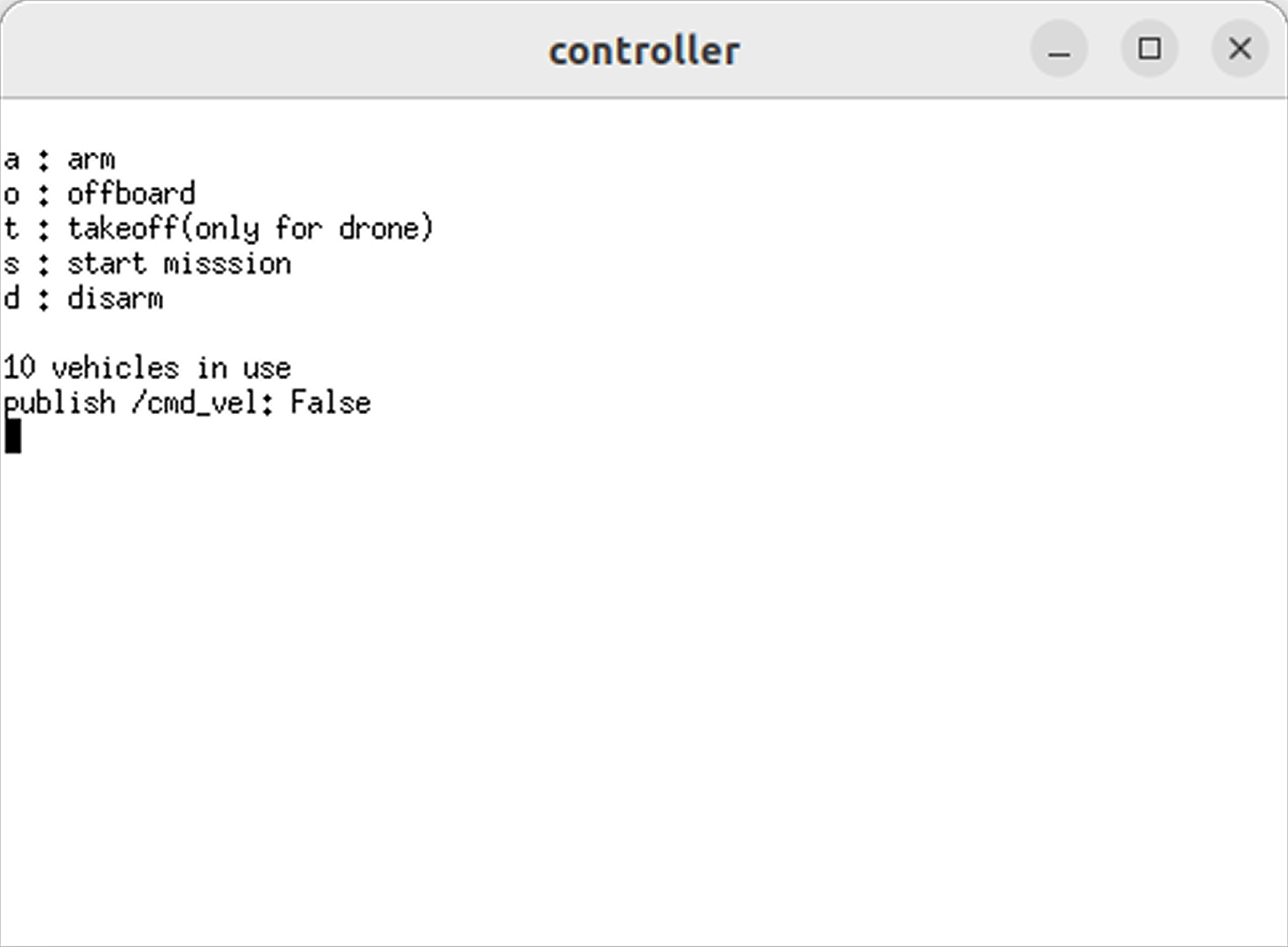
- In the new terminal window that appears, press the indicated keys (a, o, t, s, d) to send commands to the multiple unmanned vehicles.
- Arm (a) : Issue the arming (engine start) command to all unmanned vehicles.
- Offboard (o) : Switch to Offboard mode.
- Take-off (t) : Issue the take-off command to all UAVs (only when in Arming mode).
- Start mission (s) : Issue the straight driving/flight command (only when in Offboard mode).
- Disarm (d) : Issue the disarming (engine stop) command to all unmanned vehicles.
Ubuntu (Physics Engine)
- Requirements : Docker Engine, (optional)nvidia-gpu-driver, (optional)nvidia-docker
- Install Docker Engine
bash
# Add Docker's official GPG key:
sudo apt-get update
sudo apt-get install ca-certificates curl
sudo install -m 0755 -d /etc/apt/keyrings
sudo curl -fsSL https://download.docker.com/linux/ubuntu/gpg -o /etc/apt/keyrings/docker.asc
sudo chmod a+r /etc/apt/keyrings/docker.asc

# Add the repository to Apt sources:
echo \
"deb [arch=$(dpkg --print-architecture) signed-by=/etc/apt/keyrings/docker.asc] https://download.docker.com/linux/ubuntu \
$(. /etc/os-release && echo "${UBUNTU_CODENAME:-$VERSION_CODENAME}") stable" | \
sudo tee /etc/apt/sources.list.d/docker.list > /dev/null
sudo apt-get update
bash
sudo apt-get install docker-ce docker-ce-cli containerd.io docker-buildx-plugin docker-compose-plugin- (optional) Verify installation
bash
sudo docker run hello-worldbash
sudo groupadd docker
sudo usermod -aG docker $USER
reboot # or Reboot PC Manually- (Optional) Install NVIDIA drivers (for better performance, If using nvidia graphic card)
bash
sudo ubuntu-drivers install- (Optional) Install NVIDIA Container Toolkit (for better performance, If using nvidia graphic card)
bash
curl -fsSL https://nvidia.github.io/libnvidia-container/gpgkey | sudo gpg --dearmor -o /usr/share/keyrings/nvidia-container-toolkit-keyring.gpg \
  && curl -s -L https://nvidia.github.io/libnvidia-container/stable/deb/nvidia-container-toolkit.list | \
    sed 's#deb https://#deb [signed-by=/usr/share/keyrings/nvidia-container-toolkit-keyring.gpg] https://#g' | \
    sudo tee /etc/apt/sources.list.d/nvidia-container-toolkit.list
bash
export NVIDIA_CONTAINER_TOOLKIT_VERSION=1.17.8-1
  sudo apt-get install -y \
      nvidia-container-toolkit=${NVIDIA_CONTAINER_TOOLKIT_VERSION} \
      nvidia-container-toolkit-base=${NVIDIA_CONTAINER_TOOLKIT_VERSION} \
      libnvidia-container-tools=${NVIDIA_CONTAINER_TOOLKIT_VERSION} \
      libnvidia-container1=${NVIDIA_CONTAINER_TOOLKIT_VERSION}
Run RealGazebo (Ubuntu)
- Clone RealGazebo-ROS2 branch
bash
git clone https://github.com/SUV-Lab/RealGazebo-ROS2.git- Run realgazebo run script
- When running for the first time, it may take a long time to download the images.
bash
cd RealGazebo-ROS2/scripts
./run_realgazebo.sh

# example
# ./run_realgazebo.sh ../src/realgazebo/yaml/example.yaml 127.0.0.1
Windows (Visualization)
- Requirements : Graphic Driver (NVIDIA)
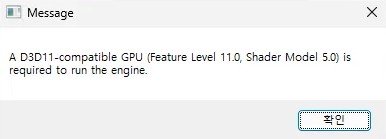
- If the graphics driver is not installed, an error window similar to the one below may appear.
Install
- Download RealGazebo File and unzip file
Run
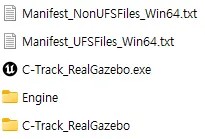
- Run C-Track_RealGazebo.exe file
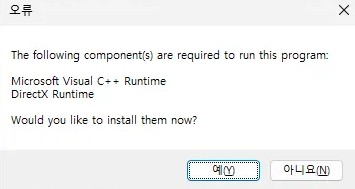
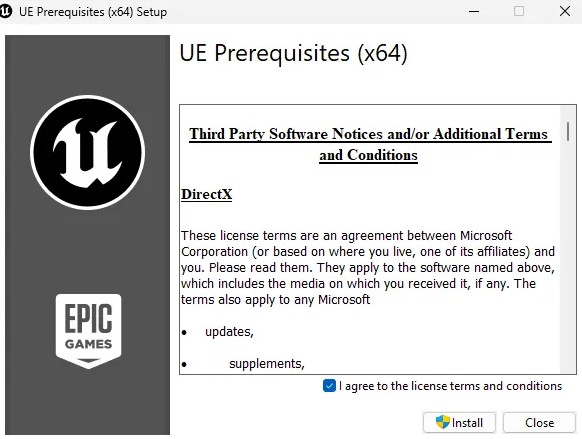
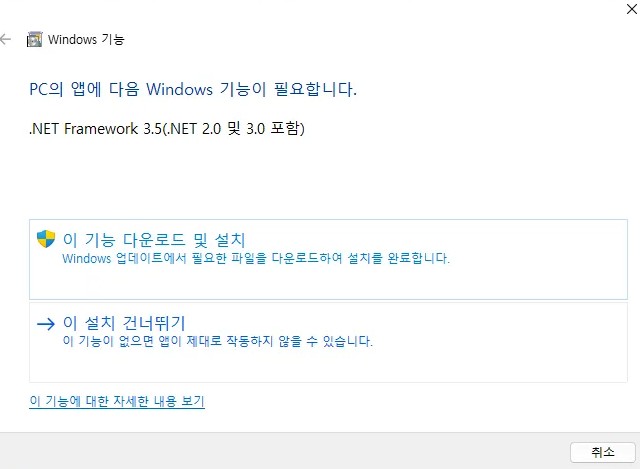
- On the first run, a message requiring installation may appear. After the installation is complete, simply run the program again
Run Demo (In Ubuntu)
- (Advanced) Run Some Example Codes (Note: The following steps should only be performed while the "Run RealGazebo" process is running in the background.)
bash
cd RealGazebo-ROS2/scripts
./run_control_one_drone.sh- Control multiple vehicles using the auto run script.
bash
cd RealGazebo-ROS2/scripts
./run_control_multi_vehicle.sh- In the new terminal window that appears, press the indicated keys (a, o, t, s, d) to send commands to the multiple unmanned vehicles.
- Arm (a) : Issue the arming (engine start) command to all unmanned vehicles.
- Offboard (o) : Switch to Offboard mode.
- Take-off (t) : Issue the take-off command to all UAVs (only when in Arming mode).
- Start mission (s) : Issue the straight driving/flight command (only when in Offboard mode).
- Disarm (d) : Issue the disarming (engine stop) command to all unmanned vehicles.